Choosing hardware
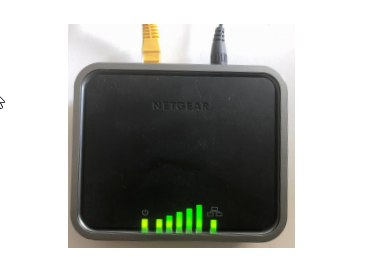
The Uplevel Unbox already provides Wi-Fi and firewall, so a single-purpose modem is the right pairing — it keeps configuration simple and total cost down. The examples in this article use the Netgear 4G LTE modem, which is reliable and inexpensive.
Representative products:
- NETGEAR 4G LTE Broadband Modem (LB1120)
- NETGEAR Nighthawk M6 Pro (5G / 4G LTE) — a more capable (and more expensive) 5G option.
Choosing a carrier plan
For ongoing service, a postpaid plan is the right choice — it provides continuity that prepaid plans can’t. Prepaid plans are useful during installation and testing: both AT&T and Verizon offer prepaid options with as little as 1 GB of data and a 30-day window.
Configuration overview
The flow has three stages:
- Initiate LTE service with the carrier.
- Configure the modem.
- Connect the modem to the Uplevel Unbox.
Initiate LTE service
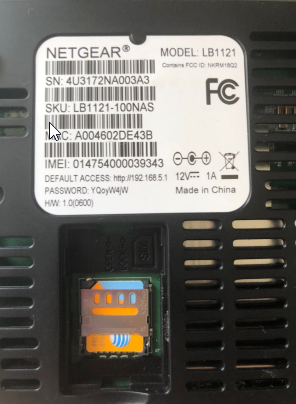
Locate the modem’s IMEI before contacting the carrier — on the Netgear modem it’s printed on the chassis underside. The carrier provisions a SIM keyed to that IMEI; insert the SIM in the slot near the label on the bottom of the modem.
Configure the modem
In a primary/failover setup, the Uplevel Unbox sits between three LAN domains:
- Internet (port 1) — primary WAN
- AUX — auxiliary WAN
- Ports 2–8 — internal LAN
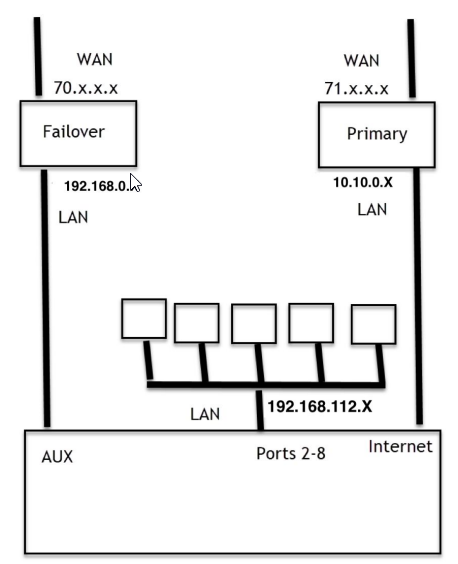
Each of those segments has to be its own subnet. The modem’s LAN subnet must not collide with any LAN subnet used by the Unbox. The Unbox’s primary and AUX WAN ports default to DHCP and pull a WAN IP address from the modem, but either can be set to a static IP if needed.
Step-by-step (Netgear 4G LTE)
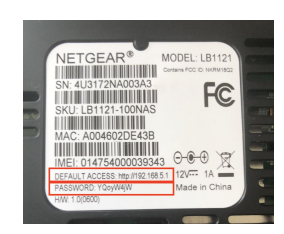
- Note the default IP address and admin password printed on the modem label.
- Plug the modem into power.
- Connect the modem to a workstation with an Ethernet cable.
- Press the power button. Boot takes about 60 seconds.
- In a browser, open the default IP address.
- Sign in with the default password.
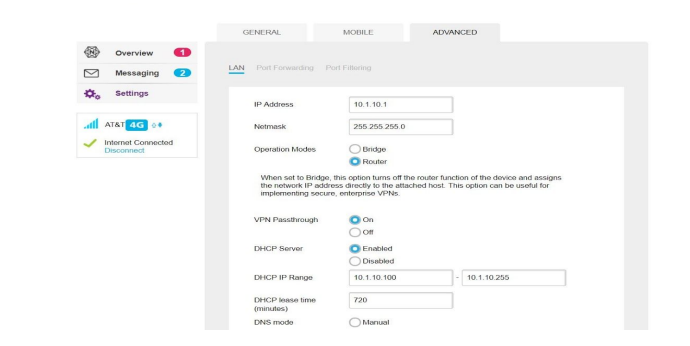
- From the left navigation, click Settings.
- Open the Advanced tab.
- Enter the IP address, netmask, and DHCP server IP for the subnet you’ve chosen (primary or failover side).
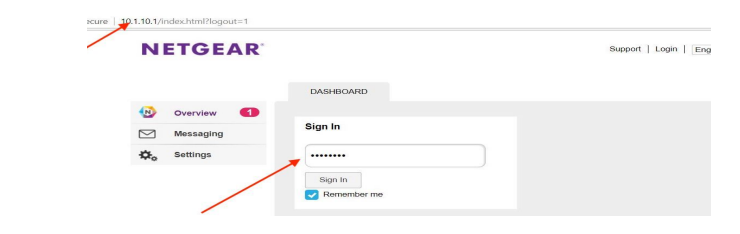
Heads up. Changing the modem’s IP drops the browser session. Open the new IP to reconnect, and note it — the address printed on the label is no longer valid. If you change the subnet, your workstation also loses connectivity; release and renew its IP. Once you’re back online, verify Internet reachability against any external site.
Alternative: Bridge mode
The Netgear 4G LTE modem can also be put into Bridge mode, turning it into a Layer-2 bridge. That sidesteps the LAN-subnet collision problem entirely — the Unbox sees the LTE-side public IP directly on its WAN port.
Connect modem to the gateway
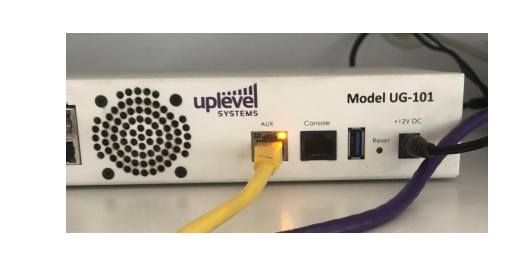
Last step: cable the modem into the Unbox. For a primary deployment, plug it into the Internet (port 1) port. For a failover deployment, plug it into AUX.