Uplevel alerts notify you by email when something needs attention at a client site. The format is configurable, and the resulting messages can be routed straight into a PSA or ticketing system to open tickets automatically.
Enabling alerts in the Portal
- Click the Profile icon in the top-right of the Uplevel Portal.
- Go to Settings › Notifications.
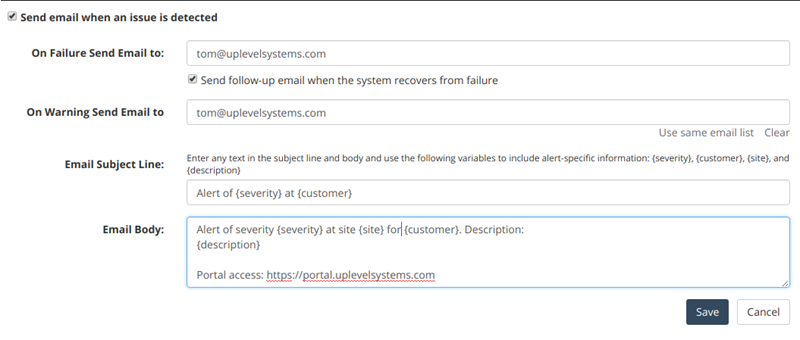
- Configure the email subject line and body using the variables listed below.
Available variables
Both the subject line and body accept {variable} placeholders.
The system substitutes them at send time.
{severity}— alert level:INFO,WARN, orALERT.{customer}— affected customer name.{site}— specific site experiencing the issue.{description}— plain-language explanation of what happened.
The variables can be copied directly from the instructions shown above the Email Subject Line field in the Portal.
Recommended template
- Subject line:
{severity} - {customer} - {site} - Body:
{severity} - {customer} - {site} {description}
This gives you quick at-a-glance context in the inbox and works well with PSA email parsers and text-to-speech tools.
Sample configuration
Routing alerts into a PSA
Uplevel alert emails can feed straight into the email-to-ticket input of most PSAs. Setup notes for the more common platforms follow; if your PSA isn’t listed, contact its support team for inbound-email connector setup and email support@uplevelsystems.com — we’re happy to coordinate with them.
Autotask
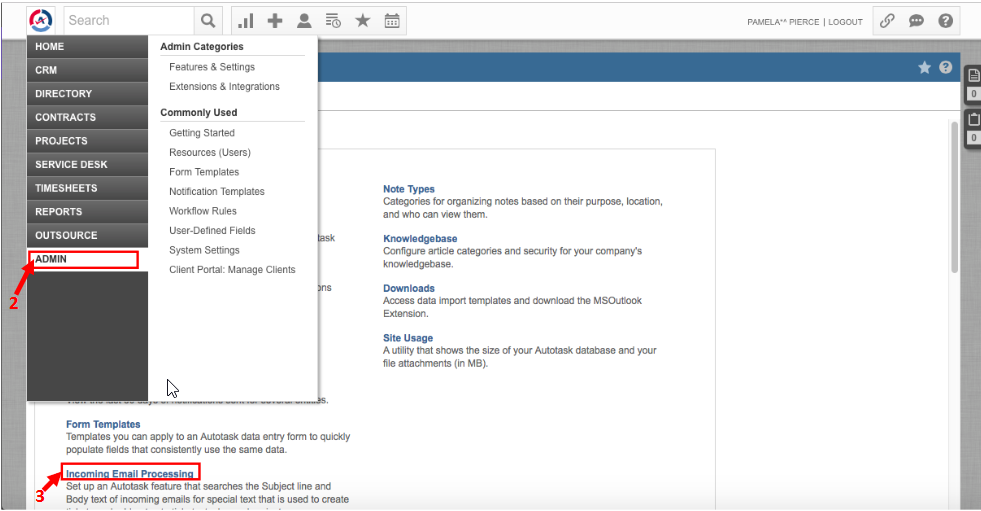
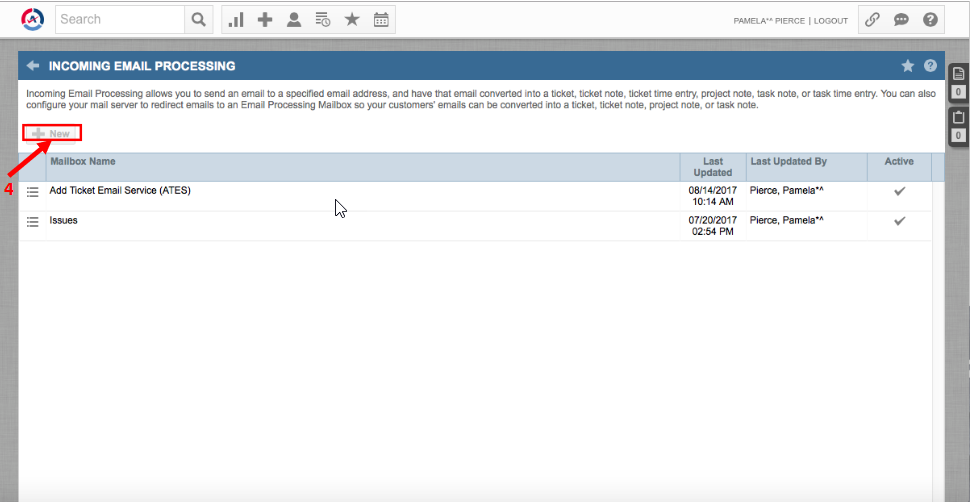
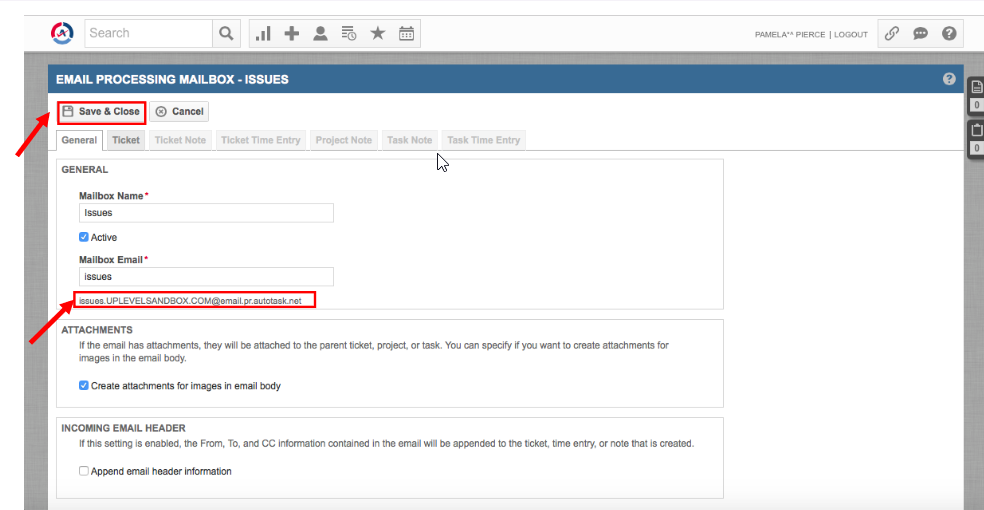
Autotask’s email-to-ticket pipeline accepts inbound mail directly from Uplevel alerts. The screenshots below show the relevant configuration screens; see the Autotask product site for product documentation.
ConnectWise
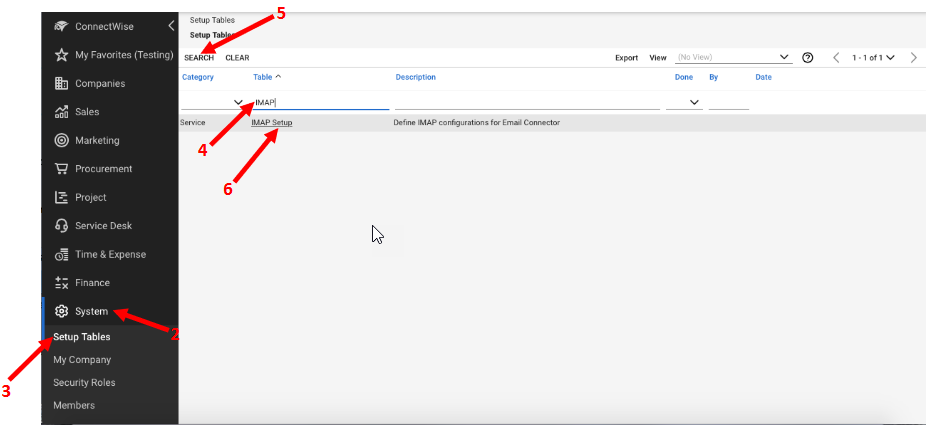
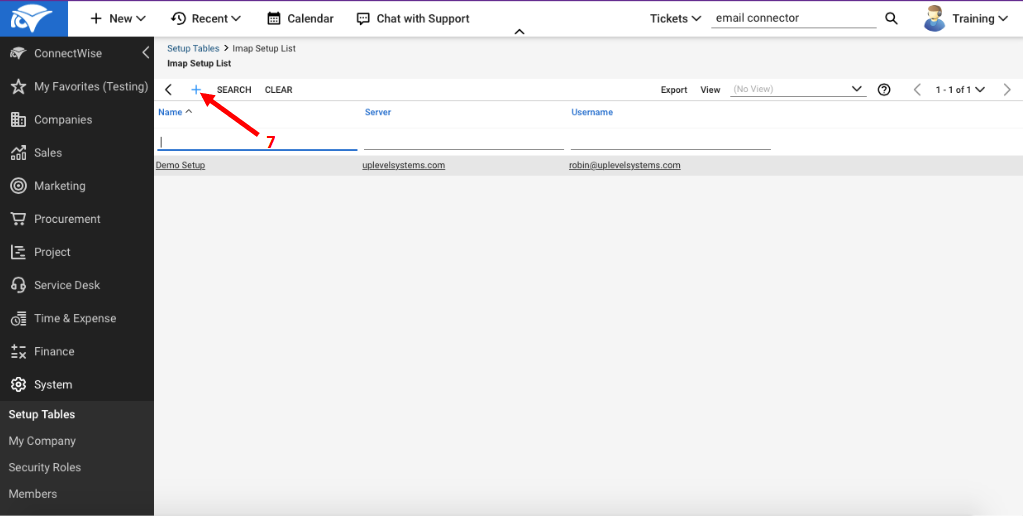
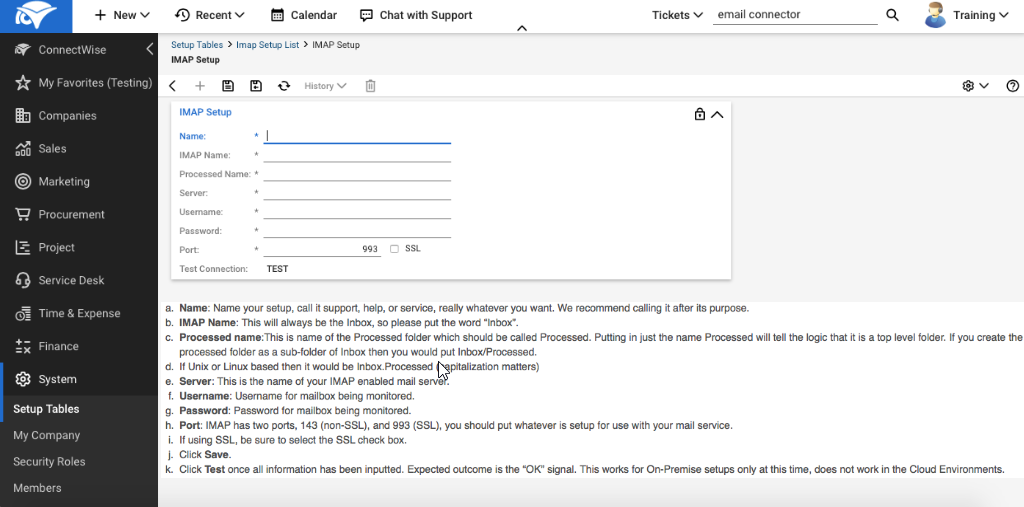
Configure an Email Connector or shared inbox in ConnectWise to receive Uplevel alerts. ConnectWise’s own documentation is authoritative:
RepairShopr
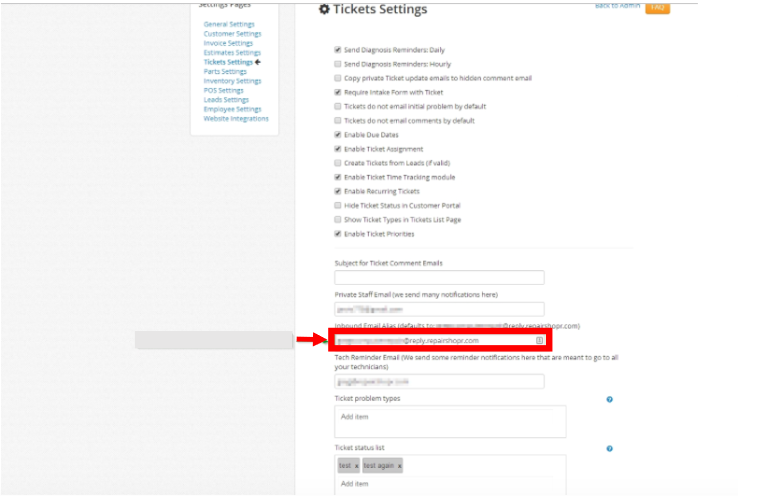
RepairShopr supports email-to-ticket. We have limited documentation for it at this time — if you have a working configuration, share it at support@uplevelsystems.com and we’ll expand this section.
Halo PSA
To route Uplevel alerts into Halo PSA, create an email-processing rule:
- Create a new rule and set the basics:
- Name the rule.
- Set Use to New Ticket (
New & Existing Ticketalso works). - Set the precedence order.
- Enable the rule.
- Set Criteria to match Uplevel alert emails:
- Field: Email Subject
- Rule type: Contains
- Value: the part of the subject line that identifies the
customer (the
{customer}substitution from your template).
- Configure Outcomes:
- Customer: set to the matching customer.
- User: set to an appropriate contact for that customer.
- Status: optionally set to In Progress if you want tickets pre-triaged.
That’s enough for a basic alert-to-ticket flow. For finer-grained routing, include the Uplevel device name in your subject-line template and match on that as well.