Microsoft’s reference for this feature lives at Folder Redirection overview.
Order of operations. If you plan to use roaming profiles alongside folder redirection in an environment with existing local profiles, deploy folder redirection first. Redirecting the bulky folders out of the profile keeps the eventual roaming profile small and quick to sync.
What folder redirection does
When a user with a folder-redirection GPO signs in to a
domain-joined machine, the contents of their redirected directories
(by default %homedrive%%homepath%) are served from the network
share rather than the local disk. This is what makes a Documents
folder follow a user from one workstation to another.
Heads-up on OneDrive. Microsoft 365 OneDrive’s Known Folder Move overlaps with traditional folder redirection — running both against the same folder will produce conflicts. See the Microsoft guidance before mixing the two.
Install Microsoft RSAT on the management workstation
You’ll manage the domain from a Windows workstation with the Remote Server Administration Tools (RSAT) installed.
- Sign in to Windows with an administrator account.
- Open Settings (
Win+I). - Click Apps, then Manage optional features.
- Click + Add a feature and scroll to the RSAT entries.
Each tool installs separately — install at minimum:
- RSAT: Active Directory Domain Services and Lightweight Directory Services Tools
- RSAT: Group Policy Management Tools

Create a share for the redirected folders
In the Uplevel Portal, under the site you’re managing:
- Open Storage.
- Click + to add a new file share.
The share is automatically mapped to the domain with Authenticated Users permissions.
Domain object names must be unique. If you name the share
Folder_Redirections, no other domain object can re-use that name.
Create the GPO
- Sign in (preferably on a management workstation with RSAT) as an account that can edit Group Policy — typically an AD Domain Administrator.
- Open the Group Policy Management Console.
- Right-click your AD domain and choose Create a GPO in this domain, and Link it here….
- Name it something descriptive like
FolderRedirections. The new GPO appears below the domain entry. - Right-click the new GPO and choose Edit to open the Group Policy Management Editor.
- Navigate to User Configuration › Policies › Windows Settings › Folder Redirection.
Configure the redirection
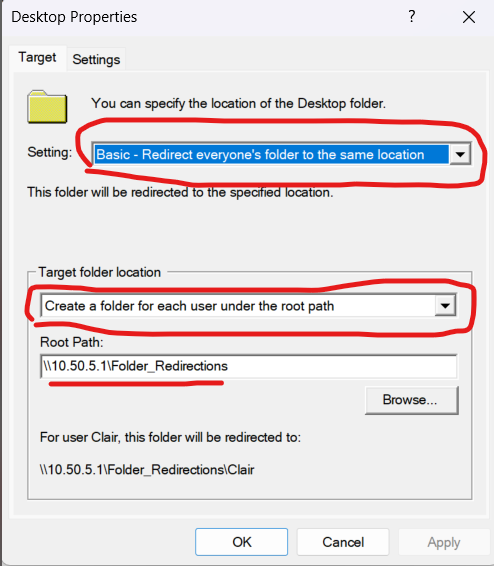
Right-click the folder you want to redirect — Documents is the most common starting point — and choose Properties.
Target tab
- Setting:
Basic - Redirect everyone's folder to the same location - Target folder location:
Create a folder for each user under the root path - Root path: the UNC path to the share you created, for
example
\\10.0.1.5\Folder_Redirections. Check the IP under Portal › IP & DNS for the VLAN that hosts the share.
Settings tab
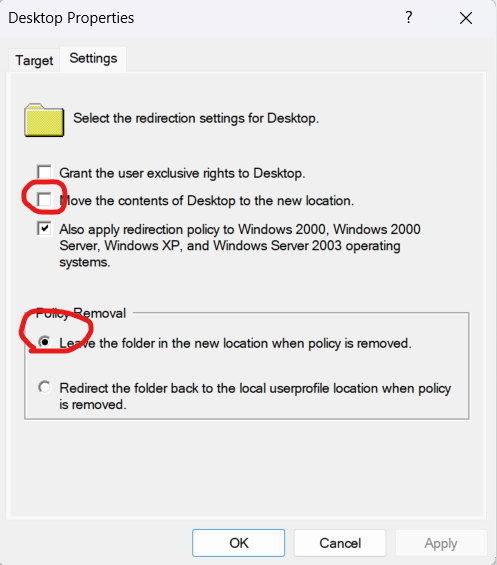
- Uncheck Grant the user exclusive rights.
- Uncheck Move the contents of Documents to the new location.
- Check Also apply redirection to Windows 2000, Windows 2000 Server, Windows XP, and Windows Server 2003 operating systems (compatibility, harmless on modern fleets).
- Check Leave the folder in the new location when policy is removed.
- Click OK.
Repeat for any additional folders you want to redirect (Desktop, Pictures, etc.).
Scoping to a subset of users
To apply the GPO only to selected users:
- In the Uplevel Portal, go to
Directory › User Groups and create a group named, for
example,
redirection. Add the relevant users. - Back in the Group Policy Management Editor, on the GPO’s
Scope tab:
- Remove Authenticated Users from security filtering.
- Add the
redirectiongroup. - Add Domain Computers as well — the GPO needs that coverage to evaluate correctly on every Windows version.
- Close the editor (GPOs are saved automatically to the domain
controller’s
Sysvolshare) and the management console.
After the GPO applies on a workstation, every member of the
redirection group will share the same set of redirected
folders — meaning a user’s Documents follows them everywhere.
Verifying the GPO
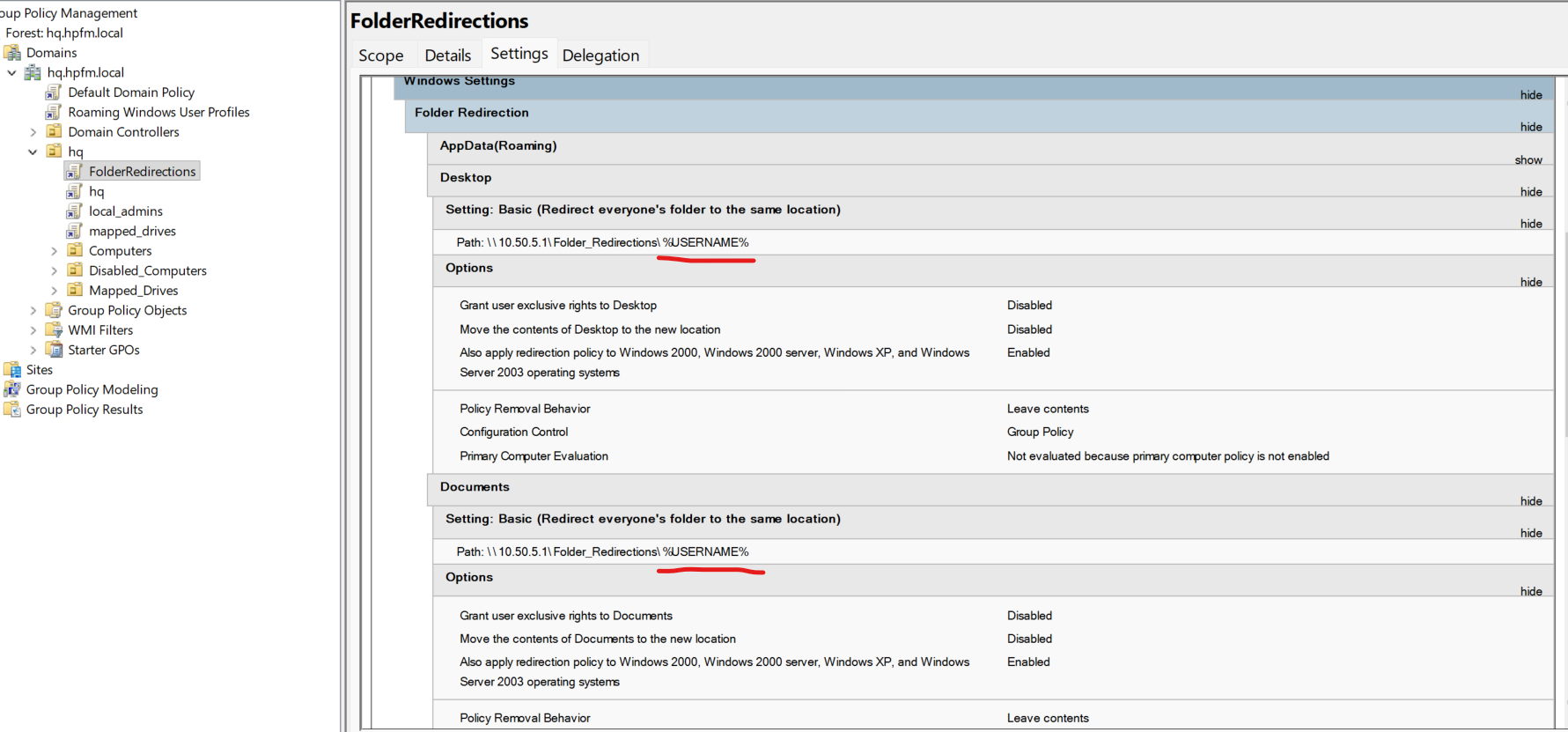
After the policy applies, the user’s Documents folder should point to the share rather than the local disk:
Forcing a policy refresh
Group Policy refreshes every 90 minutes by default, with a random ±30-minute offset. To apply changes immediately on a client, run:
gpupdate /force
Output will be along the lines of:
Updating Policy...
User Policy update has completed successfully.
Computer Policy update has completed successfully.
Some changes still won’t take effect until the next sign-in or reboot.