When migrating onto the Uplevel Directory Service, the first step is to capture the current Microsoft AD domain in CSV form so we can pre-populate users, computers, and groups on the Uplevel side. There are two paths to that CSV: the ADUC GUI (good for small domains) and a PowerShell script (the right choice for anything non-trivial).
GUI: Active Directory Users and Computers
The ADUC snap-in can export the contents of any OU directly to
a tab-delimited text file. Rename the file to .csv (or open it
in Excel and save as CSV) and you’re done.
Step-by-step
- Open ADUC at Start › Administrative Tools › Active Directory Users and Computers.
- Expand your domain and click Users.
- The list contains user, security-group, and distribution-group objects. Use the filter icon (funnel) and choose Show only the following types of objects › Users. Click OK.
- Choose which columns to export. For a migration batch you typically need User Logon Name, First Name, Last Name, and Email Address. Set these via View › Add/Remove Columns.
- Click Export List in the toolbar and save the file with a
.csvextension. - Repeat the same procedure under Computers to capture
workstations. For any hosts that aren’t in the directory, run
hostnameon the host and add the output to the CSV by hand. - ADUC doesn’t have a built-in way to export group membership.
For that, use the PowerShell script in the next section
(specifically
Get-ADGroupandGet-ADGroupMember).
PowerShell
Prerequisites — ActiveDirectory module
On a domain controller or any server running AD DS / AD LDS, the ActiveDirectory PowerShell module is already installed. On a member server (Windows Server 2012 / 2016 / 2019 / 2022), enable the AD DS and AD LDS Tools feature via Server Manager › Manage › Add Roles and Features › Remote Server Administration Tools › Role Administration Tools, or from an elevated PowerShell:
Add-WindowsFeature RSAT-AD-PowerShell
On Windows 10 / 11 workstations, install RSAT to get the module. Verify with:
Get-Module -ListAvailable
If you see ActiveDirectory listed under Manifest, you’re ready.
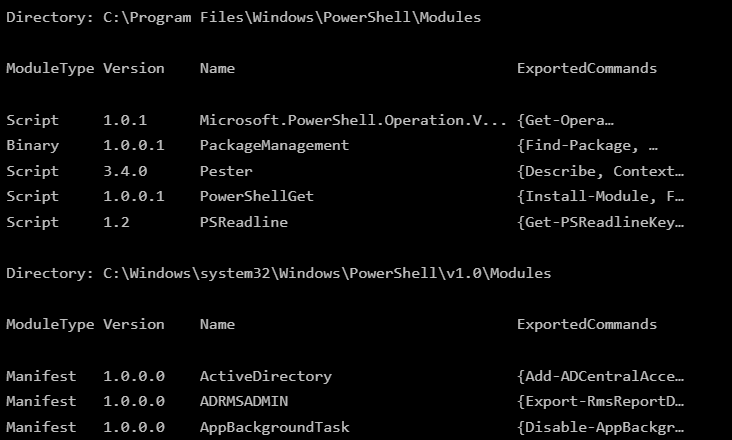
Export script (Server 2012 and newer)
Save the following as exportAD.ps1 and run it from an elevated
PowerShell with ./exportAD.ps1. It writes five CSV files into
an AD-Backup-<timestamp> directory, archives them into a ZIP,
and opens File Explorer at the result.
$ErrorActionPreference = "Continue"
$timestamp = Get-Date -Format "yyyyMMdd-HHmmss"
$backupDir = "AD-Backup-$timestamp"
New-Item -ItemType Directory -Path $backupDir | Out-Null

Write-Output "Collecting Domain Users and Computers"

# Domain controllers
Get-ADDomainController -Filter * |
  Select-Object Name, Domain, IPv4Address, ServerObjectDN |
  Export-Csv -Path "$backupDir\ad-domain.csv" -NoTypeInformation

# Users
Get-ADUser -Filter * -Properties GivenName, Surname, SamAccountName, EmailAddress, DistinguishedName |
  Select-Object GivenName, Surname, SamAccountName, EmailAddress, DistinguishedName, ObjectClass |
  Export-Csv -Path "$backupDir\ad-users.csv" -NoTypeInformation

# Groups and recursive members
Get-ADGroup -Filter * | ForEach-Object {
    $group = $_
    Get-ADGroupMember -Identity $group -Recursive |
      Select-Object @{N='GroupName';E={$group.Name}}, Name, SamAccountName, DistinguishedName
} | Export-Csv -Path "$backupDir\ad-groups.csv" -NoTypeInformation

# Computers
Get-ADComputer -Filter * -Properties CN, DNSHostName, PrimaryGroup |
  Select-Object CN, DNSHostName, PrimaryGroup |
  Export-Csv -Path "$backupDir\ad-computers.csv" -NoTypeInformation

# GPOs
Get-GPO -All |
  Select-Object DisplayName, ID, CreationTime, ModificationTime |
  Export-Csv -Path "$backupDir\ad-GPOs.csv" -NoTypeInformation

$currentDir = Get-Location
$zipPath = Join-Path $currentDir "ActiveDirectory-CSV-$timestamp.zip"
Compress-Archive -Path "$backupDir\*.csv" -DestinationPath $zipPath
explorer.exe $currentDir
Write-Output "Backup completed. CSV files are in $backupDir"
Write-Output "ZIP archive is located at: $zipPath"
Send the resulting ZIP to Uplevel support.
Export script (Small Business Server 2008–2011)
Older SBS releases have compatibility quirks with a few of the cmdlets above. The variant below keeps the core flow but tolerates the missing pieces. If it errors, send the error text and fall back to the GUI method.
if (-not (Get-Module -ListAvailable -Name ActiveDirectory)) {
    Import-Module ServerManager
    Add-WindowsFeature RSAT-AD-PowerShell
}

$ErrorActionPreference = "Continue"
$timestamp = Get-Date -Format "yyyyMMdd-HHmmss"
$backupDir = "AD-Backup-$timestamp"
New-Item -ItemType Directory -Path $backupDir | Out-Null

Get-ADDomainController -Filter * |
  Select-Object Name, Domain, IPv4Address, ServerObjectGUID |
  Export-Csv -Path "$backupDir\ad-domain.csv" -NoTypeInformation

Get-ADUser -Filter * -Properties GivenName, Surname, SamAccountName, EmailAddress, DistinguishedName |
  Select-Object GivenName, Surname, SamAccountName, EmailAddress, DistinguishedName, ObjectClass |
  Export-Csv -Path "$backupDir\ad-users.csv" -NoTypeInformation

Get-ADGroup -Filter * | ForEach-Object {
    $group = $_
    Get-ADGroupMember -Identity $group |
      Select-Object @{N='GroupName';E={$group.Name}}, Name, SamAccountName, DistinguishedName
} | Export-Csv -Path "$backupDir\ad-groups.csv" -NoTypeInformation

Get-ADComputer -Filter * -Properties CN, DNSHostName |
  Select-Object CN, DNSHostName |
  Export-Csv -Path "$backupDir\ad-computers.csv" -NoTypeInformation

if (Get-Module -ListAvailable -Name GroupPolicy) {
    Import-Module GroupPolicy
    Get-GPO -All |
      Select-Object DisplayName, ID, CreationTime, ModificationTime |
      Export-Csv -Path "$backupDir\ad-GPOs.csv" -NoTypeInformation
} else {
    Write-Output "GroupPolicy module not available. Skipping GPO export."
}

$currentDir = Get-Location
$zipPath = Join-Path $currentDir "ActiveDirectory-CSV-$timestamp.zip"
Add-Type -AssemblyName System.IO.Compression.FileSystem
[System.IO.Compression.ZipFile]::CreateFromDirectory($backupDir, $zipPath)
explorer.exe $currentDir
Mapped drives
Mapped drives aren’t stored in AD — they’re per-user on each host’s registry. Run this on every workstation, once per user who signs in, to capture the mappings before cutover:
Get-ChildItem "HKCU:Network\" |
ForEach-Object {
    [PsCustomObject]@{
        DriveLetter = $_.PSChildName
        RemotePath  = (Get-ItemProperty $_.PSPath).RemotePath
    }
}