By default, the gateway runs in WAN Failover mode — only the primary connection carries traffic until it fails. Enable Load Balancing if you want both connections active at once.
Enabling Load Balancing
- In the Portal, open the Overview section of the client’s site.
- In the WAN Port area, click the Disabled link next to Load Balancing.

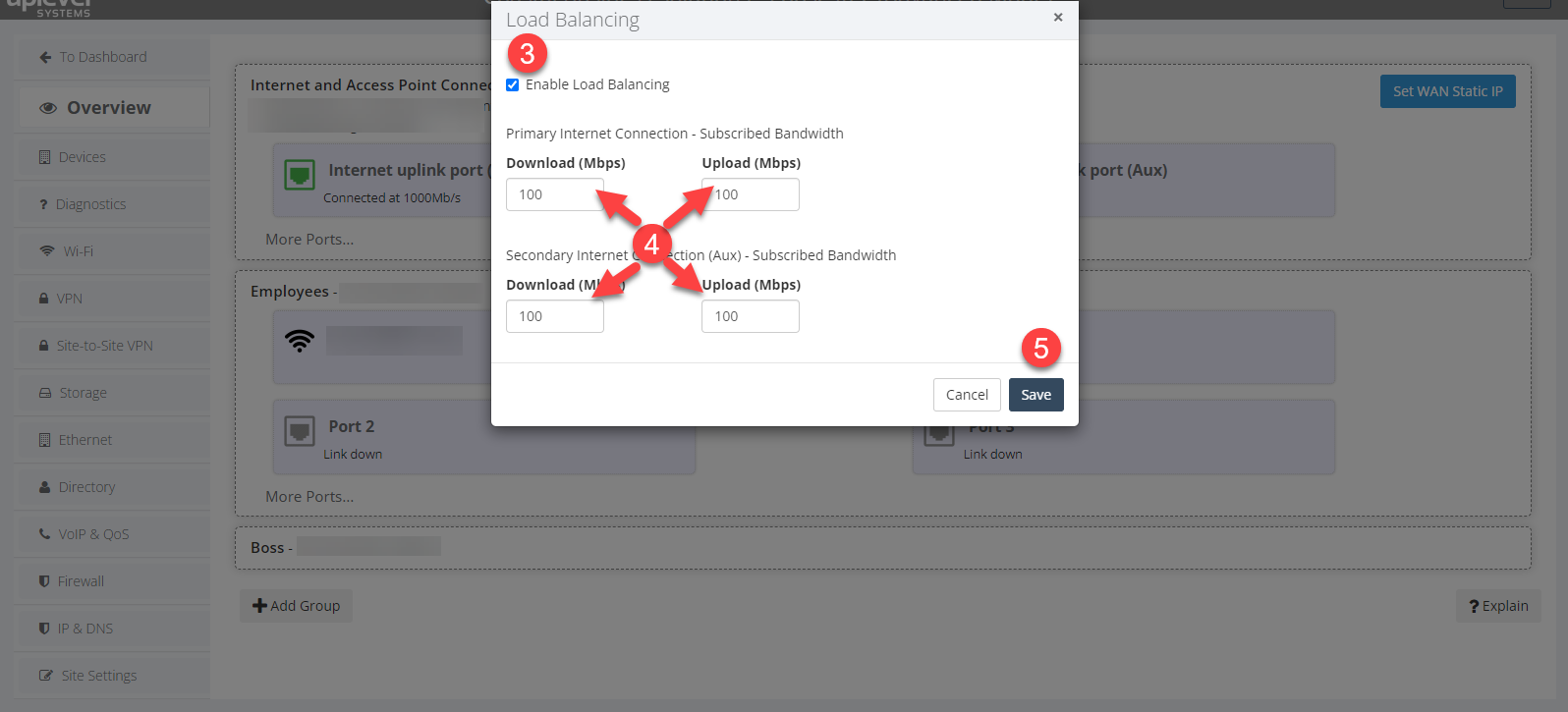
- Choose Enable.
- Enter the Upload and Download speeds for each Internet connection so the gateway knows how to weight traffic.
- Click Save.
The gateway distributes new connections across both WANs in proportion to the configured speeds. Existing connections stay on the link they were initiated on. If a link fails, the gateway falls back to single-link operation on the survivor and rebalances again when the dead link recovers.