Introduction
Windows File Explorer’s Previous Versions tab can restore files and directories from the snapshots that the Uplevel storage system keeps for each NAS share. The whole flow happens inside Explorer — no extra software, no Portal interaction needed for the user.
Microsoft’s reference: Recover lost or deleted files.
Restoring from File Explorer
- Navigate to the folder that used to contain the file or folder.
- Right-click it.
- Select Restore previous versions.
If the missing item was at the top of a drive — for example
C:\ — right-click the drive itself and choose Restore
previous versions there instead.
Tip. If you don’t remember the exact name or location of the missing file, type part of its name into the Documents library’s search box first. The Previous Versions tab is available on whatever Explorer is currently focused on.
What it looks like
Here’s a Windows host connected to a gateway, viewing the Previous Versions tab on a share called “Packages”:
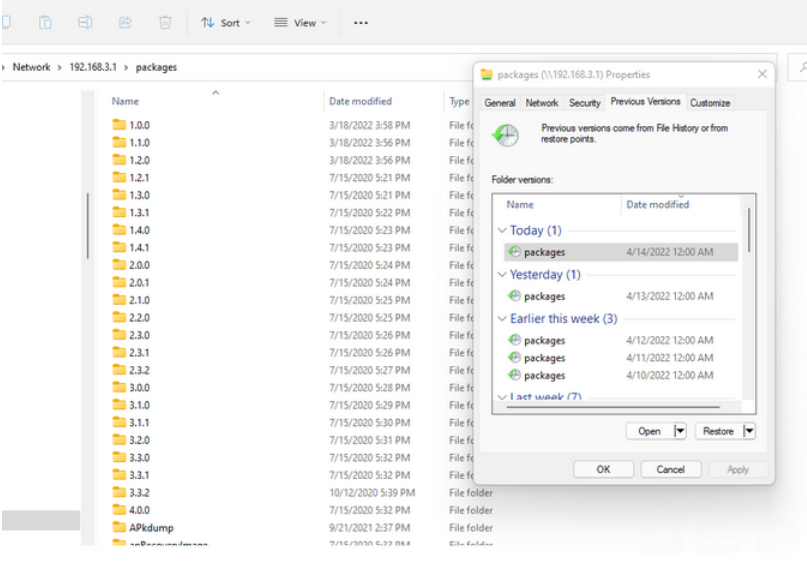
The dialog lists each available snapshot by timestamp. Pick the version you want, then click Open to inspect it, Copy to recover it to a different path, or Restore to overwrite the current file with the snapshot version.