Scope. These instructions cover non-Domain-Services environments — that is, sites that are not running the Uplevel Directory Service. With Directory Services in play, drive mapping happens automatically via GPOs at sign-in; configure mappings under Uplevel Portal › Directory › Mapped Drives.
Create the share in the Portal
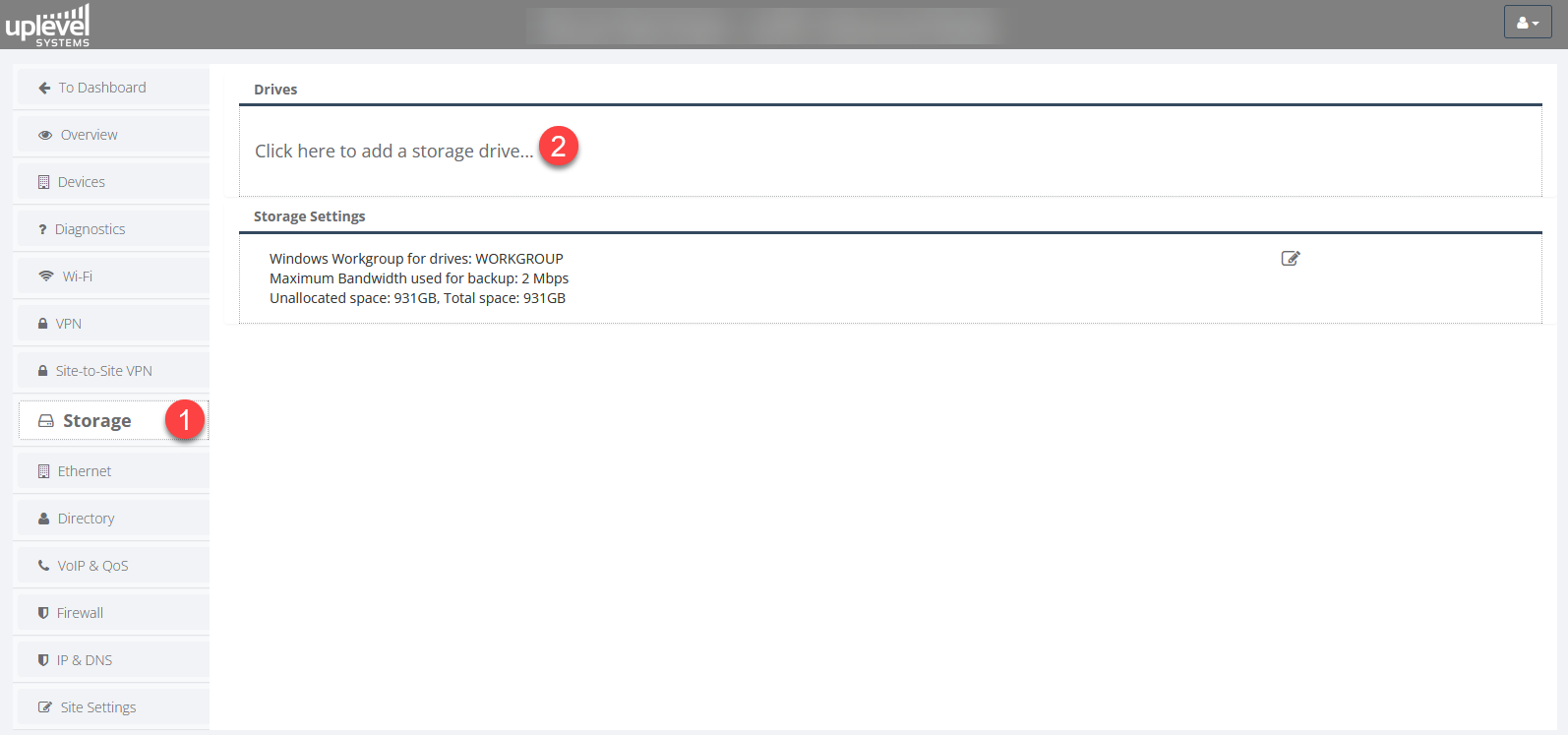
In the Uplevel Portal, open Storage and create a new Storage Drive (share).
Map the share on a Windows host
Mapping the share as a drive letter lets users edit files directly from File Explorer instead of routing through a USB stick or external transfer service.
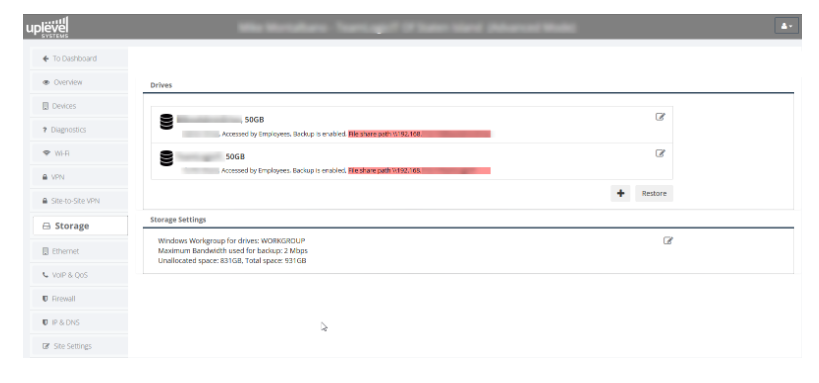
In the Portal’s Storage section, copy the File Share Path
for the share — it has the form \\GATEWAY_IP\SHARE_NAME.
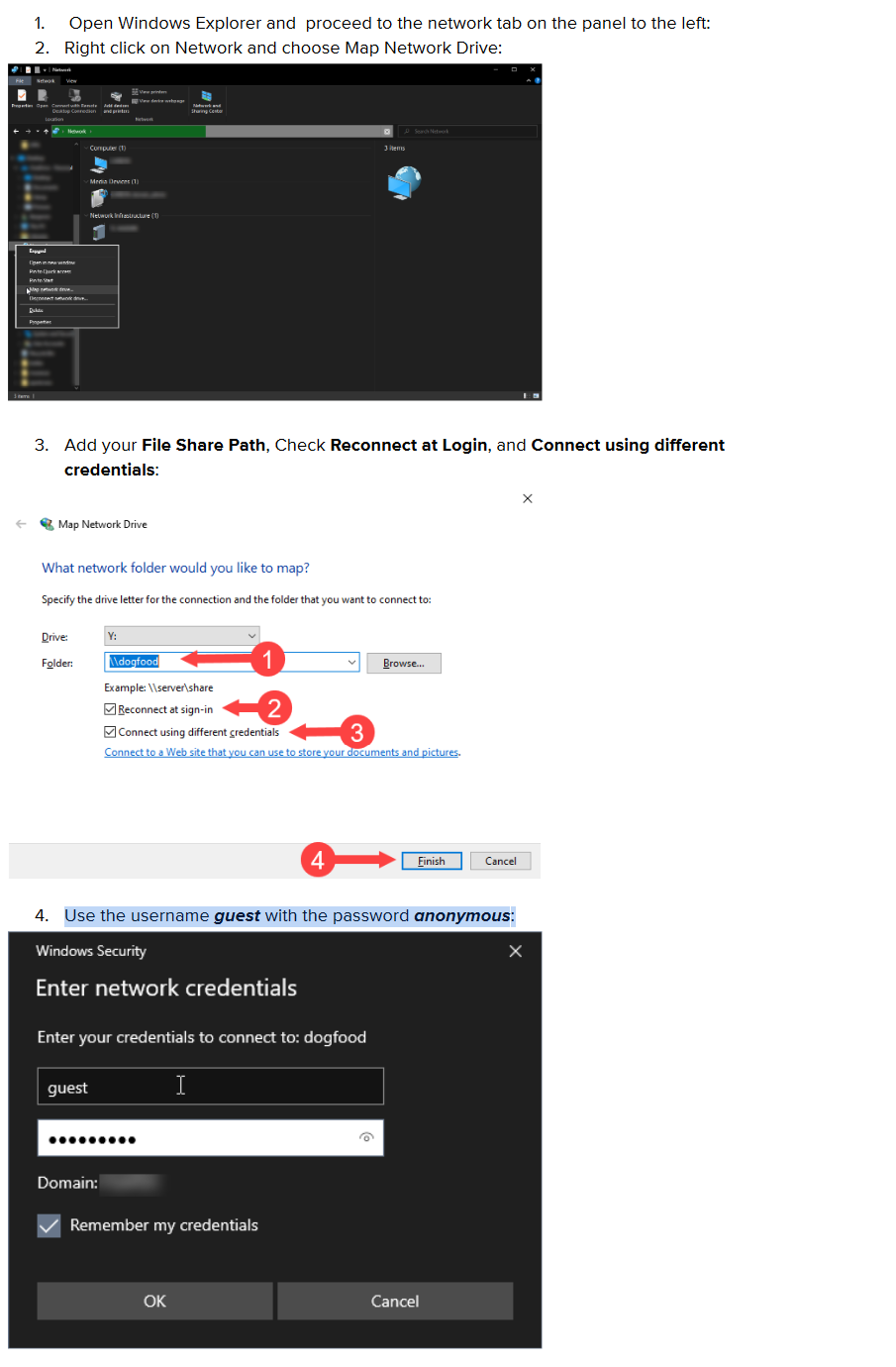
Then map the drive in Windows Explorer the usual way:
Credentials
The share uses standard Windows SMB/CIFS guest authentication. Any of the conventional combinations work:
- User:
guestoranonymous - Password:
guestoranonymous
These credentials aren’t set by Uplevel — they are hard-coded into the Windows File Sharing / SAMBA protocol stack.
Troubleshooting
Windows Hello sign-in — error 0x80004005
If the workstation signs in with Windows Hello (PIN,
fingerprint, face) or Azure AD, the SMB client refuses to
fall back to anonymous credentials. Use guest@local as the
username when mapping the drive.
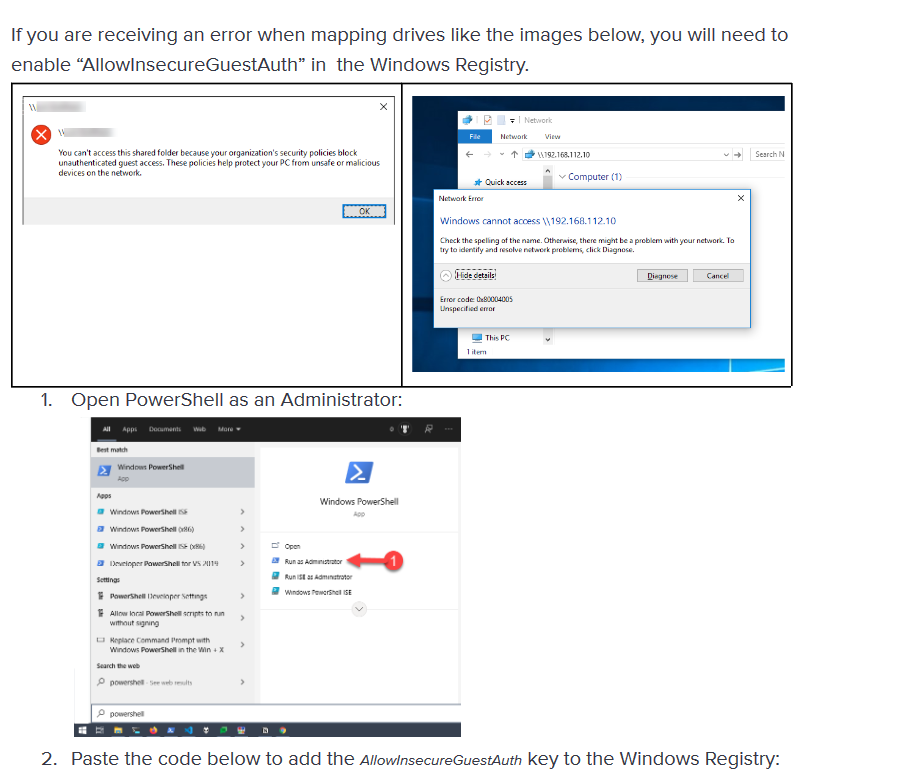
The Windows side also needs a couple of registry tweaks to let insecure guest access through. From an elevated PowerShell:
Set-ItemProperty -Path "HKLM:\SYSTEM\CurrentControlSet\Services\LanmanWorkstation\Parameters" `
  -Name "AllowInsecureGuestAuth" -Type DWord -Value 1

Set-ItemProperty -Path "HKLM:\SYSTEM\CurrentControlSet\Services\LanmanWorkstation\Parameters" `
  -Name "RequireSecuritySignature" -Type DWord -Value 0

Enable-WindowsOptionalFeature -Online -FeatureName SMB1Protocol-Client -All
Reboot Windows so the settings take effect, then re-map the drive.
To map from PowerShell directly:
$cred = Get-Credential -Credential guest@local
# Use password "guest" or "anonymous"
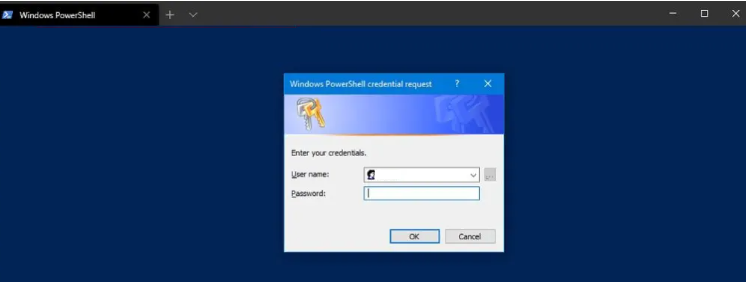
Then mount it:
New-PSDrive -Name "E" -Root "\\192.168.128.1\Share_Name" `
  -Persist -PSProvider "FileSystem" -Credential $cred
Microsoft references:
Error 3227320323 — SMB signing conflict
If net use or PowerShell mapping returns system error
3227320323, Windows is requiring SMB signing that the share
won’t satisfy. Either policy or PowerShell can clear it.
Background: Microsoft’s announcement at SMB Signing and Guest Authentication explains the recent default-tightening.
Option 1 — Group Policy Editor
- Open
gpedit.msc. - Navigate to Computer Configuration › Windows Settings › Security Settings › Local Policies › Security Options.
- Locate Microsoft network client: Digitally sign communications (always) and set it to Disabled.
- While you’re there, open Digitally sign communications (if server agrees) and also set it to Disabled.
- Save and reboot.
Option 2 — PowerShell
As Administrator:
Set-SmbClientConfiguration -RequireSecuritySignature $false
Option 3 — Registry, with reboot
reg add "HKEY_LOCAL_MACHINE\SYSTEM\CurrentControlSet\Services\LanmanWorkstation\Parameters" ^
  /v RequireSecuritySignature /t REG_DWORD /d 0 /f
reg add "HKEY_LOCAL_MACHINE\SYSTEM\CurrentControlSet\Services\LanmanWorkstation\Parameters" ^
  /v EnableSecuritySignature /t REG_DWORD /d 0 /f
shutdown /r /t 0
Temporary workaround (until next reboot)
From an elevated PowerShell:
Set-SmbClientConfiguration -RequireSecuritySignature $false -Force
# Optional, not recommended:
# Set-SmbClientConfiguration -EnableSecuritySignature $false -Force
Restart-Service LanmanWorkstation -Force
Error 2148073478 — SMB secure negotiation
PowerShell
Set-SmbClientConfiguration -RequireSecuritySignature $false

# If the issue persists:
Set-ItemProperty -Path "HKLM:\SYSTEM\CurrentControlSet\Services\LanmanWorkstation\Parameters" `
  RequireSecureNegotiate -Value 0 -Force
Registry, with reboot
- Open Registry Editor as Administrator.
- Navigate to
HKEY_LOCAL_MACHINE\SYSTEM\CurrentControlSet\Control\Lsa. - Locate or create the
LmCompatibilityLevelDWORD value. - Set it to
5. - Restart Windows for the change to take effect.
Each of these workarounds relaxes a Windows security default. Apply them after checking your IT security policy — they’re intended for closed networks where the SMB endpoint is the gateway you control, not the public Internet.