Creating a security group
To create a new security group (VLAN), click the Add Group button at the lower-left of the gateway’s Overview page in the Portal.
The Add Group dialog asks for a name and an optional subnet.
The name is what shows up everywhere else in the Portal, so pick
something users will recognise (e.g. Employees, Phones,
Cameras).
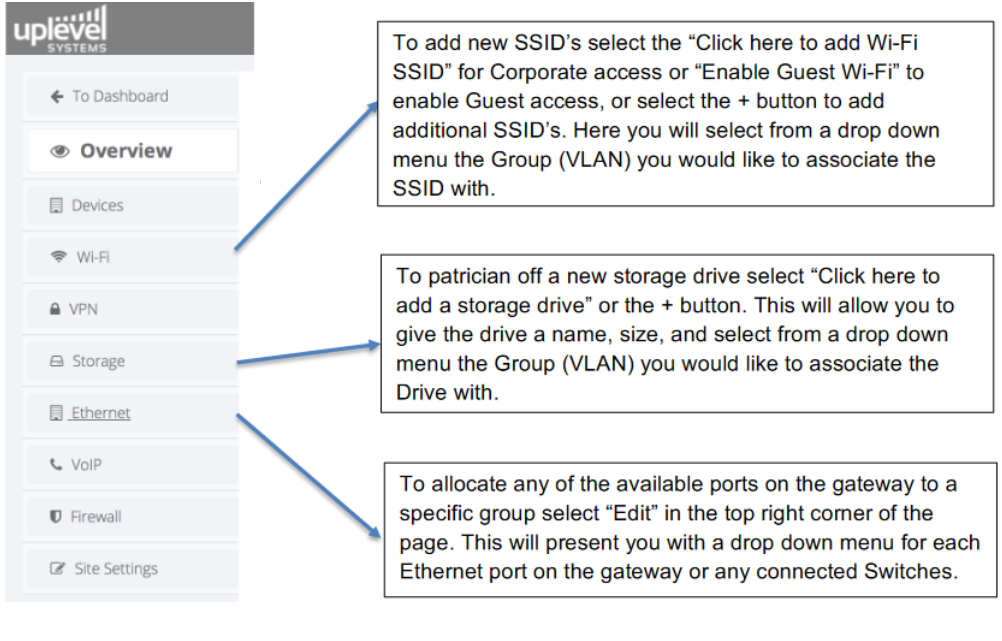
Once the group exists, you can assign resources to it from the Wi-Fi, Ethernet, and Storage sections of the Portal.
Reserved VLANs
The following VLAN IDs are reserved by the platform and must not be repurposed:
| VLAN | Purpose |
|---|---|
| 1 | System device management (hidden) |
| 10 | WAN ports |
| 11 | VPN backbone |
| 12 | WAN ports |
Why VLAN 1 for management? For historical reasons. A higher ID (something like 1001) would have been cleaner, but the already-deployed switches and APs expect management traffic on VLAN 1, so the choice can’t be reversed now.
Default VLANs
The Portal ships with three named VLANs pre-configured. They have sensible defaults but can be retuned via Portal › Firewall › Inter-VLAN if you want them to behave as ordinary groups instead.
VLAN 2 — Employees (default)
- Reachable by every other group.
- Cannot initiate traffic into other VLANs.
Good fit for general staff access, printers, and shares that everyone needs to see.
VLAN 3 — Guest (default)
- Firewalled off from the internal network.
- Internet access only.
- Bandwidth throttling on by default.
Intended for visitor and customer Wi-Fi.
VLAN 4 — Boss (default)
- Not reachable from other groups by default.
- Can initiate traffic into every other VLAN.
Intended for administrative access.
General-purpose VLANs
VLAN IDs 5 through 9 are open for whatever you need them for — additional employee subgroups, IoT, voice, cameras, and so on.
Modifying the defaults
The default behaviour of Employees, Guest, and Boss is just that — defaults. Through Portal › Firewall › Inter-VLAN each of them can be reshaped to behave like a general-purpose VLAN.
Tagged vs. untagged traffic
How the gateway interoperates with the LAN depends on whether ports are configured to tag traffic with 802.1Q VLAN IDs or to leave it untagged.
Tagged trunks
For tagged traffic, the VLAN IDs must match on both ends of the link. If the gateway tags traffic as VLAN 5 going out and the upstream switch expects VLAN 7 on that port, frames will be dropped.
Set 802.1Q tags in Portal › Ethernet › Edit Ports › Advanced.
Untagged ports
Untagged links don’t carry VLAN IDs over the wire, so the IDs at each end don’t have to match. Tags are stripped going out and re-applied based on the port’s group assignment coming in.
This means VLAN-numbering conventions inside a single untagged LAN are basically internal bookkeeping. As a concrete example: you can use VLAN 1 on the LAN for what end users see as “Employees” and connect the switch uplink to a gateway port that the gateway considers VLAN 2 (Employees). Tags are stripped in both directions, so end devices never see the mismatch.